# Dify
> Official Firecrawl plugin for Dify workflows, plus knowledge base website sync
**Official Dify Plugin:** [marketplace.dify.ai/plugins/langgenius/firecrawl](https://marketplace.dify.ai/plugins/langgenius/firecrawl)
Official plugin by Dify team • 170,000+ installs • Chatflow & Agent apps • Free to use
## Dify Integration Overview
Dify is an open-source LLM app development platform. The official Firecrawl plugin enables web crawling and scraping directly in your AI workflows.
Build visual pipelines with Firecrawl nodes for data extraction
Give AI agents the power to scrape live web data on demand
## Firecrawl Tools in Dify
The plugin ships seven actions.
Search the web and optionally scrape the returned results, so you get fresh result metadata or full page content in one step.
**Use Cases:** Research assistants, competitor discovery, grounding answers in live sources.
Convert any URL into clean, structured data. Transform raw HTML into actionable insights.
**Use Cases:** Extract product data, scrape article content, get structured data with JSON mode.
Perform recursive crawls of websites and subdomains to gather extensive content.
**Use Cases:** Full site content extraction, documentation scraping, multi-page data collection.
Generate a complete map of all URLs present on a website.
**Use Cases:** Site structure analysis, SEO auditing, URL discovery for batch scraping.
Retrieve scraping results based on a Job ID or cancel ongoing tasks.
**Use Cases:** Monitor long-running crawls, manage async scraping workflows, cancel operations when needed.
Create a scheduled monitor that re-checks a target on a recurring schedule.
**Use Cases:** Keeping ingested data fresh, changelog watching, competitor tracking.
Retrieve a monitor's details and its check results, so you can act only on the pages that changed.
**Use Cases:** Incremental knowledge base updates, change alerts, downstream triggers.
## Getting Started
Access the [Dify Plugin Marketplace](https://marketplace.dify.ai/plugins/langgenius/firecrawl) and install the Firecrawl tool
Visit [Firecrawl API Keys](https://www.firecrawl.dev/app/api-keys) and create a new API key
Navigate to **Plugins > Firecrawl > To Authorize** and input your API key
Drag Firecrawl tools into your Chatflow, Workflow, or Agent application
Set up parameters and test your workflow
## Usage Patterns
**Visual Pipeline Integration**
1. Add Firecrawl node to your pipeline
2. Select action (Map, Crawl, Scrape)
3. Define input variables
4. Execute pipeline sequentially
**Example Flow:**
```
User Input → Firecrawl (Scrape) → LLM Processing → Response
```
**Automated Data Processing**
Build multi-step workflows with:
- Scheduled scraping
- Data transformation
- Database storage
- Notifications
**Example Flow:**
```
Schedule Trigger → Firecrawl (Crawl) → Data Processing → Storage
```
**AI-Powered Web Access**
Give agents real-time web scraping capabilities:
1. Add Firecrawl tool to Agent
2. Agent autonomously decides when to scrape
3. LLM analyzes extracted content
4. Agent provides informed responses
**Use Case:** Customer support agents that reference live documentation
## Common Use Cases
Build RAG-powered chatbots that scrape and reference live website content
Agents that research topics by scraping and analyzing multiple sources
Automated workflows that track competitor websites and alert on changes
Extract and enrich data from websites into structured databases
## Firecrawl Actions
| Tool | Description | Best For |
|------|-------------|----------|
| **Search** | Web search with optional page content | Grounding answers in live sources |
| **Scrape** | Single-page data extraction | Quick content capture |
| **Crawl** | Multi-page recursive crawling | Full site extraction |
| **Map** | URL discovery and site mapping | SEO analysis, URL lists |
| **Crawl Job** | Async job management | Long-running operations |
| **Create Monitor** | Scheduled re-checks of a target | Keeping ingested data fresh |
| **Monitor Checks** | Monitor details and check results | Acting only on changed pages |
## Best Practices
- Let agents decide when to scrape
- Use natural language instructions
- Enable tool calling in LLM settings
- Monitor token usage with large scrapes
- Use Map before Crawl for large sites
- Set appropriate crawl limits
- Add error handling nodes
- Test with small datasets first
## Dify vs Other Platforms
| Feature | Dify | Make | Zapier | n8n |
|---------|------|------|--------|-----|
| **Type** | LLM app platform | Workflow automation | Workflow automation | Workflow automation |
| **Best For** | AI agents & chatbots | Visual workflows | Quick automation | Developer control |
| **Pricing** | Open-source + Cloud | Operations-based | Per-task | Execution-based |
| **AI-Native** | Yes | Partial | Partial | Partial |
| **Self-Hosted** | Yes | No | No | Yes |
**Pro Tip:** Dify excels at building AI-native applications where agents need dynamic web access. Perfect for chatbots, research assistants, and AI tools that need live data.
## Sync websites into the Dify knowledge base
Firecrawl can also scrape a web page into Markdown and import it into the Dify knowledge base from [Dify Cloud](https://cloud.dify.ai/).
### Configuring Firecrawl
Open your avatar menu, go to the **DataSource** page, and configure Firecrawl credentials.
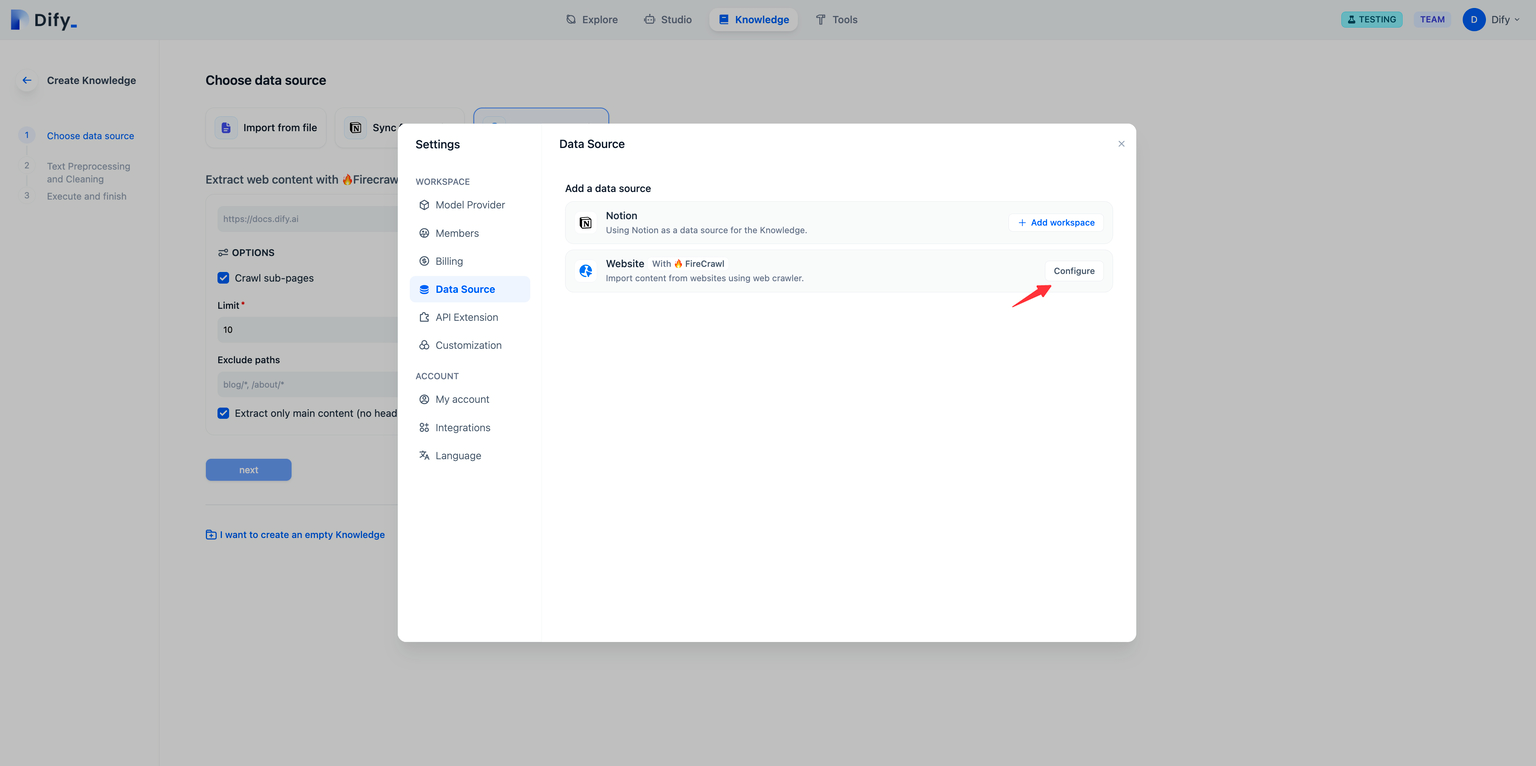 Log in to your Firecrawl account, get your API key, then enter and save it in Dify.
 ### Scrape the target webpage
On the knowledge base creation page, select Sync from website, choose Firecrawl as the provider, and enter the URL to scrape.
### Scrape the target webpage
On the knowledge base creation page, select Sync from website, choose Firecrawl as the provider, and enter the URL to scrape.
 Configuration options include: whether to crawl sub-pages, page crawling limit, page scraping max depth, excluded paths, include only paths, and content extraction scope. After configuring, click Run to preview the parsed pages.
 ### Review import results
Imported page text is stored in knowledge base documents. View the results and click Add URL to import more pages.
### Review import results
Imported page text is stored in knowledge base documents. View the results and click Add URL to import more pages.
